

Introduction to Responsive Web Design HTML
Responsive web design HTML is the practice of building web pages that automatically adjust their layout and content to look great on any screen — phone, tablet, or desktop.
Here are the core elements you need to get started:
- Viewport meta tag — tells the browser to match the screen width of the device
- Fluid layouts — use Flexbox or CSS Grid with relative units (%, rem, vw) instead of fixed pixels
- Media queries — apply different CSS styles at specific screen widths (breakpoints)
- Flexible images — set
max-width: 100%so images scale within their container - Mobile-first approach — write base styles for small screens, then enhance for larger ones
These five building blocks work together to create a single website that serves every user well — no separate mobile site needed.
The web looks very different depending on where people access it. Someone might browse your business on a 5-inch phone during their commute, then return on a 27-inch desktop at the office. If your site only looks good on one of those screens, you’re losing the other.
The term responsive web design was coined by Ethan Marcotte in 2010. His idea was simple: instead of building separate sites for each device, use fluid grids, flexible images, and media queries to let one site adapt to all of them. That idea is now the standard way websites are built.
Google also rewards responsive sites with higher search rankings. A site that works poorly on mobile will rank lower — and with mobile internet usage continuing to grow, that’s a real business risk.
I’m Milton Brown, a digital marketer since 2008 with extensive experience helping businesses improve their online presence — including implementing responsive web design HTML strategies that drive measurable results across devices. In this guide, I’ll walk you through everything you need to build responsive pages from the ground up.
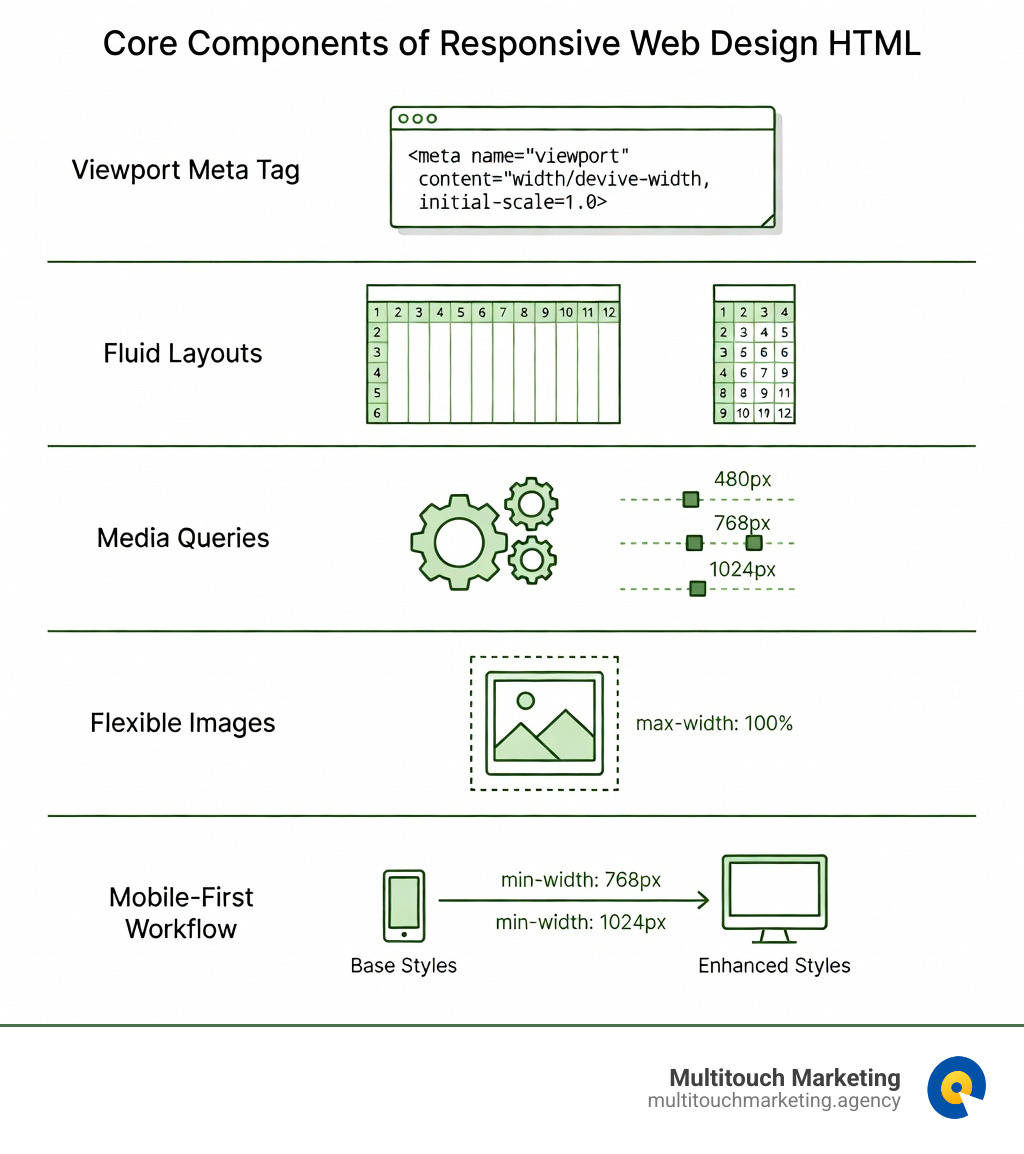
Simple guide to responsive web design html terms:
The Foundation: Viewport Meta Tag and Relative Units
Before we start moving boxes around with CSS, we have to fix a historical “lie” told by mobile browsers. Back when the iPhone first launched, most websites were fixed at a width of 980 pixels. To make these sites readable, mobile browsers would pretend their screen was 980 pixels wide and then zoom out. This made everything tiny and impossible to interact with.
The Viewport Meta Tag
The solution is the viewport meta tag. This tiny snippet of HTML tells the browser: “Don’t pretend. Use the actual width of the device.”
<meta name="viewport" content="width=device-width, initial-scale=1">
By setting width=device-width, we ensure the page matches the screen’s width in device-independent pixels. The initial-scale=1 part sets the initial zoom level when the page first loads. Without this tag, your beautiful media queries might never even trigger because the phone thinks it’s a desktop. For a deeper dive into how this works, you can check out An Introduction to Meta Viewport.
Moving Away from Pixels: Relative Units
If we want a truly flexible layout, we have to stop thinking in fixed pixels (px). Pixels are “absolute” units—they stay the same size regardless of the screen. Instead, we use relative units that adapt to their environment:
- Percentages (%): Great for widths. A sidebar set to 25% will always take up a quarter of its parent container.
- em and rem: These are based on font sizes.
1remis typically equal to the root font size (usually 16px). Using these for padding and margins ensures your spacing scales with your text. - Viewport Units (vw, vh): These are powerful.
1vwis 1% of the viewport width. If you set a headline to10vw, it will grow and shrink perfectly as you resize the browser window.
Using these units is one of the more info about responsive web design principles that separates amateur sites from professional, fluid experiences.
Core Techniques for Responsive Web Design HTML
The heart of responsive web design HTML lies in the layout. In the old days, we used “floats” to hack together layouts, which was about as fun as eating soup with a fork. Today, we have two modern powerhouses: Flexbox and CSS Grid.
Fluid Grids and 12-Column Systems
Many designers use a 12-column grid system. Why 12? Because it’s easily divisible by 2, 3, 4, and 6, making it incredibly flexible. In a responsive grid, these columns aren’t fixed widths; they are percentages that total 100%.
| Feature | Flexbox | CSS Grid |
|---|---|---|
| Dimension | One-dimensional (Row OR Column) | Two-dimensional (Row AND Column) |
| Best For | Aligning items, small components, navigation bars | Complex layouts, full-page structures, overlapping elements |
| Scaling | Content-driven (items grow/shrink to fit) | Layout-driven (items fit into defined tracks) |
Modern Layout Tools
With CSS Grid, we use fractional units (fr). Instead of doing math like 33.33%, we can define a grid as grid-template-columns: 1fr 1fr 1fr;. This creates three equal columns that handle all the math for us.
We can also use the minmax() function to ensure columns don’t get too small: grid-template-columns: repeat(auto-fit, minmax(250px, 1fr));. This magic line of code tells the browser to fit as many 250px columns as possible, and if there isn’t enough room, it will automatically wrap the items to the next line. You can see this in action in this Flexible Grid Demo.
Implementing Media Queries and Breakpoints
Media queries are the “if-then” statements of CSS. They allow us to say: “If the screen is wider than 768 pixels, change the background to blue and show three columns.”
The syntax looks like this:
@media screen and (min-width: 768px) {
  .container {
 display: flex;
  }
}
Choosing “breakpoints” (the points where the layout changes) used to be based on specific devices like the iPhone or iPad. However, we now recommend choosing breakpoints based on your content. If your text starts looking awkwardly long or your images get too squashed, that’s where you need a breakpoint. Common starting points include:
- 480px: Mobile phones
- 768px: Tablets
- 1024px: Desktops and Laptops
For more advanced syntax and logical operators, refer to this CSS Media Queries guide.
Mobile-First vs. Desktop-First Approaches
At Multitouch Marketing, we strongly advocate for a mobile-first approach. This means you write your base CSS for the smallest screens first (single column, large touch targets) and then use min-width media queries to add complexity as the screen gets larger.
This is better for performance because mobile devices don’t have to process large, complex desktop styles only to have them overridden. It’s also a better design philosophy—it forces you to prioritize your most important content. You can explore a Mobile First Demo to see the difference, or learn more about responsive web design for beginners on our blog.
Handling Responsive Media and Typography
A fluid layout is useless if your images are “bleeding” off the edge of the screen or your text is so small it requires a magnifying glass.
Flexible Images
The simplest way to make an image responsive is to use one line of CSS:
img {
  max-width: 100%;
  height: auto;
}
This tells the image: “You can be your natural size, but never get wider than your container.” The height: auto ensures the image maintains its aspect ratio so it doesn’t look stretched or squashed. This technique works for videos and canvas elements too. See the Flexible Media Demo for more examples.
Advanced Responsive Web Design HTML Elements
Sometimes, max-width: 100% isn’t enough. If you have a massive 4000-pixel hero image, you don’t want a mobile user to download that entire file just to see a tiny version of it. This is where the srcset attribute come in.
- srcset: Allows you to provide a list of different image sizes and their widths. The browser then chooses the best one based on the user’s screen resolution.
: Allows for “art direction.” You can serve a horizontal image for desktop and a cropped, vertical version for mobile.
These responsive web design techniques significantly improve page load times and user experience.
Fluid Typography
Typography should also be fluid. While media queries can jump font sizes at specific points, the clamp() function allows for a smooth transition.
font-size: clamp(1rem, 5vw, 2rem);
This line sets a minimum size (1rem), a preferred size that scales with the viewport (5vw), and a maximum size (2rem). It’s the ultimate way to ensure readability across all devices. You can find more details in the Viewport Percentage Lengths research.
Best Practices for Testing and SEO
Responsive design isn’t just about looking pretty; it’s a critical part of your SEO strategy. Google uses “mobile-first indexing,” meaning it looks at the mobile version of your site to determine your rankings. If your responsive web design HTML is messy, your search traffic will suffer.
Testing Strategy
Don’t just resize your browser window and call it a day. Here is how we recommend testing:
- Chrome DevTools: Press F12 and click the device icon. This allows you to simulate dozens of different devices and even throttle your internet speed to see how the site loads on 3G.
- Lighthouse: Run a Lighthouse audit (found in the Chrome DevTools ‘Lighthouse’ tab). It will specifically check if your content is sized correctly for the viewport.
- Real Devices: Nothing beats holding an actual phone. Test on both iOS and Android if possible, as browsers like Safari and Chrome can have slight rendering differences.
A site that passes these tests will see improved responsive web design and search engine optimization results, leading to better engagement and lower bounce rates.
Frequently Asked Questions about Responsive Web Design HTML
What is the difference between responsive and adaptive design?
While people often use the terms interchangeably, they are different. Responsive design is fluid; it changes continuously regardless of the device. Adaptive design uses fixed layouts that “snap” into place only at specific breakpoints. Responsive design is generally preferred today because it handles the thousands of different screen sizes much more gracefully. You can read the original responsive web design overview by Ethan Marcotte for the full history.
Why is the viewport meta tag essential for mobile devices?
Without it, mobile browsers assume you have a non-responsive desktop site. They will render the page at a wide width (usually 980px) and zoom out, making your text tiny and your buttons impossible to click. The viewport tag is the “handshake” between your code and the mobile device. Google’s Lighthouse viewport audit will actually flag your site as “not mobile-friendly” if this tag is missing.
How do CSS frameworks like Bootstrap simplify responsive coding?
Frameworks like Bootstrap or W3.CSS come with a pre-built 12-column grid and dozens of utility classes. Instead of writing your own media queries for every project, you can use classes like col-md-6 (which means “take up half the screen on medium devices”). This can save a lot of time, especially for complex layouts. Many frameworks are built for responsive web design for all devices right out of the box.
Conclusion
Mastering responsive web design HTML is no longer a “bonus” skill—it’s a fundamental requirement for anyone building for the modern web. By combining the viewport meta tag, fluid layouts, and smart media queries, you create a digital experience that is future-proof and user-friendly.
Whether you are a business owner in Raleigh, NC, or a developer in Durham, Chapel Hill, or anywhere else in North Carolina, your users deserve a site that works wherever they are. At Multitouch Marketing, we specialize in creating high-performance digital strategies that ensure your brand looks its best on every screen.
If you’re ready to take your site to the next level, explore our Responsive Web Design Services and let us help you build something amazing.